
[Rx] Parsec Quick Guide
Accessing Your Home Computer From a Laptop
Parsec lets you remotely control your home desktop from another device with very low lag — great for gaming, editing, or just grabbing files when you’re away.
TL;DR
-
Desktop run Parsec signed on to your account (verified email check).
-
Laptop run Parsec signed in to same account (verified email check).
-
Laptop, click Connect to DESKTOP.
Top Commands
| Key | Action |
|---|---|
| alt+tab | Switch Computers |
| ctl+shift+m | Menu |
| ctl+shift+i | Immersive View |
Home Computer (Laptop has the same screen but tiles switched.)
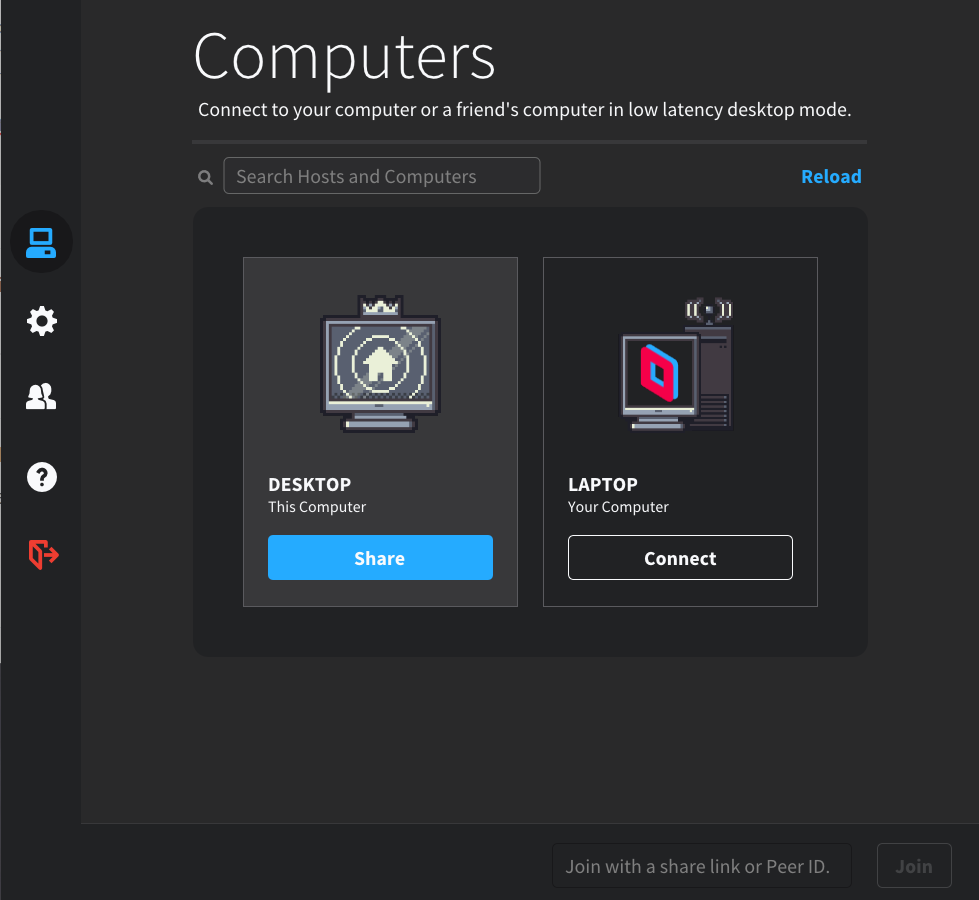
What you need
- Your home computer (the host) — stays on and connected to the internet
- Your laptop (the client) — this is what you’ll actually use
- A free Parsec account (same account on both devices)
Step 1: Set up the host (your home computer)
- On your home computer, go to parsec.app and download the app for its OS (Windows, Mac, or Linux).
- Install it and sign in with your Parsec account.
- Hosting is turned on by default on Windows. To check or toggle it: open Settings → Host and make sure hosting is enabled.
- Leave the computer powered on, awake (disable sleep in your power settings), and connected to the internet — Parsec can’t reach it if it’s asleep or shut down.
Step 2: Set up the client (your laptop)
- Download and install Parsec on the laptop from the same site.
- Log in with the same Parsec account you used on the home computer.
Step 3: Connect
- Open Parsec on the laptop — you should see your home computer listed under your devices.
- Click Connect.
- Your home desktop should appear on the laptop screen, ready to control with your laptop’s mouse and keyboard.
No port forwarding or router setup is needed — Parsec handles the connection between the two devices automatically.
A few tips
- Resolution looks off? Go to Settings → Host on the desktop and switch from “Keep Host Resolution” to “Use Client Resolution” so it matches your laptop’s screen.
- Choppy video? Lower the bandwidth/FPS in the client’s connection settings, or check if a VPN is adding latency.
- Multiple people need access? Use the Friends tab to send an invite — they’ll need their own Parsec account and your approval to connect.
- Want it always available? Set Parsec to launch automatically when the host computer starts up (in your OS’s startup/login items).
Common hotkeys (during a session)
| Action | Windows/Linux | macOS |
|---|---|---|
| Disconnect | Ctrl+Alt+ ` |
Command+Option+ orCmd+Q/W` |
| Open menu | Ctrl+Shift+M |
Command+Shift+M |
| Chat | Ctrl+Shift+C |
Command+Shift+C |
| Switch display (multi-monitor host) | Ctrl+Shift+D |
Command+Shift+D |
| Send Ctrl+Alt+Del to host | Ctrl+Alt+End |
Control+Option+Backspace |
| Toggle window/fullscreen mode | Ctrl+Shift+W |
Command+Shift+W |
| Immersive mode (pass OS shortcuts like Alt+Tab to host) | Ctrl+Shift+I |
Command+Shift+I |
| Detach input (let others control without you) | Ctrl+Alt+Z |
Command+Option+Z |
The ones you’ll use most for a home setup:
- Immersive Mode (
Ctrl+Shift+I/Cmd+Shift+I) — turn this on so shortcuts like Alt+Tab or Cmd+Tab go to the host computer instead of your laptop - Disconnect (`Ctrl+Alt+``) — quick way to end the session
- Menu (
Ctrl+Shift+M) — opens in-session settings like quality and display options
All of these can be viewed or remapped under Settings → Hotkeys, with a “Reset to Default” button if needed. On Mac, if combos like Cmd+Tab aren’t reaching the host, grant Parsec Accessibility permissions (System Preferences → Security & Privacy → Accessibility) and make sure Immersive Mode is on.
Quick troubleshooting
| Issue | Fix |
|---|---|
| Host not showing up | Confirm both devices are logged into the same account and the host app is running |
| Error connecting | Check the host computer is awake, not asleep or hibernating |
| Laggy stream | Lower bandwidth/resolution, check network, disable unrelated VPNs |
| Blocked install | Check antivirus isn’t blocking the Parsec installer |
